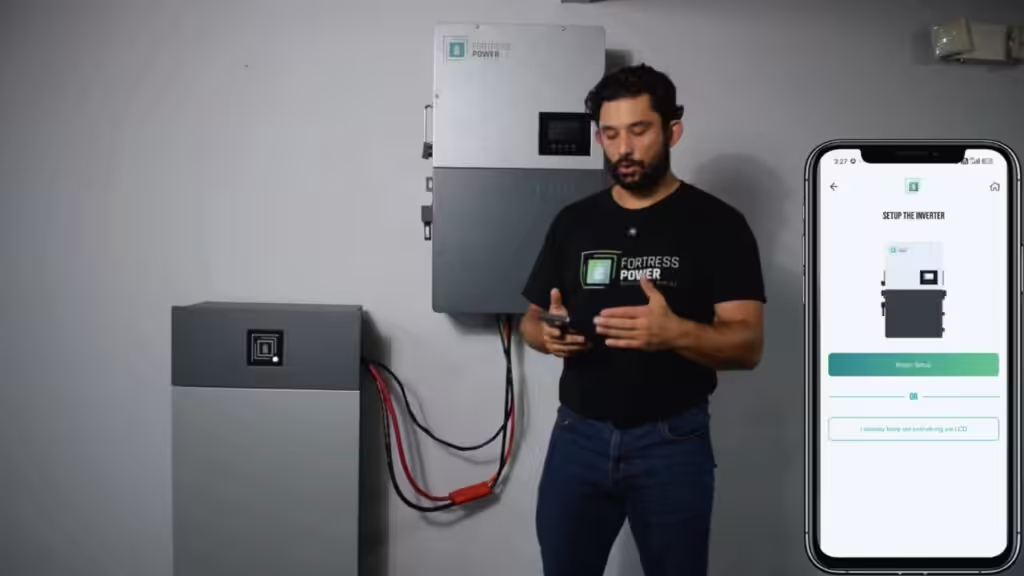
Getting a system up and running should be the easiest part of the install.
With the Fortress Power PRO App, commissioning an eBoost battery and Envy inverter is a guided process that takes you from first connection to final setup directly from your phone. No guesswork, just a faster way to bring systems online.
Below, we walk through the full process so you can commission with confidence.
Before You Start
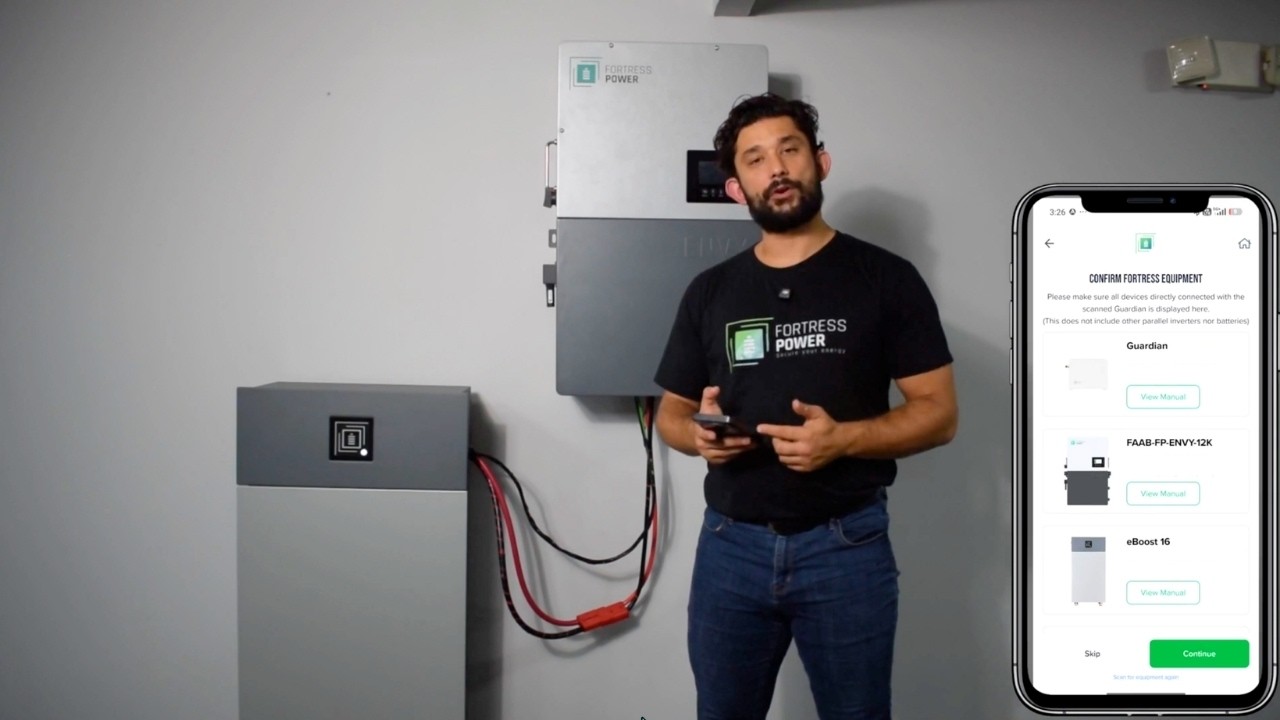
Make sure your system is fully installed and ready to power on. This setup includes an eBoost battery, Envy inverter, and the Guardian monitoring device, which connects everything and enables app-based setup.
You’ll also need a Wi-Fi or Ethernet connection and the Fortress Power Pro App installed on your phone.
Step 1: Install and Wire the Guardian
Start by installing the Guardian and connecting the required cables.
Key connections:
- Connect power and communication cables to the inverter
- For eWay Lite systems, use inverter ports (no DC port available)
- Insert the Guardian into its designated slot
Wiring tips:
- Use the DC cable to power the Guardian
- Connect communication cables between the Guardian and inverter
- Use the correct wire pins (orange and orange-white)
- Plug the battery communication cable into any available port
Step 2: Power On the System
Once wiring is complete:
- Turn the breaker to the energized position
- Power on the battery (hold the button for 5 seconds)
- Confirm the LED indicator is active
This will energize the inverter and prepare the system for setup.
Step 3: Connect in the Pro App
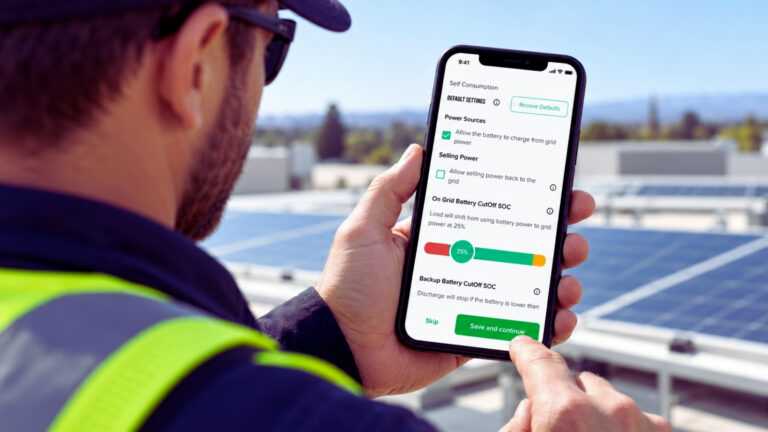
Open the Fortress Power Pro App and log in or create an account. If you already have a Guardian or existing system account, you may be prompted to update your password before logging in. To start commissioning:
- Add a new site
- Scan for the Guardian via Bluetooth
- Connect to Wi-Fi or Ethernet
- Confirm location and system details
- Register the system to the cloud
Then select your equipment: Inverter: Envy series & Battery: eBoost. From there, the app guides you through the rest of the setup.
Step 4: Configure System Settings
The Pro App includes preset configurations to streamline setup. Key settings to confirm:
- Voltage: Match your system (e.g., split-phase 120/240V)
- Application: Grid-tied or off-grid
- CT rating: Typically 300A for Envy Duo (range: 100–600A)
The inverter will automatically reset after applying these settings.
Step 5: Adjust Battery and Energy Settings
Customize system behavior based on the installation:
- On-grid cutoff: When the system switches from battery to grid
- Off-grid cutoff: Typically set around 20% state of charge
- Grid charging: Enable if needed
- Export settings: Control energy sent back to the grid
- You can also configure the generator port or skip it if not used.
Step 6: Complete Commissioning
Once all settings are confirmed:
- The system will finalize setup
- Registration to the cloud is completed
Your system is now fully commissioned and ready to operate.
Pro Tips
- Multiple batteries: Connect the Guardian to the primary battery (not the one with the terminator)
- Existing setups: Skip guided commissioning if settings are already configured via LCD
- Voltage checks: Always verify at the panel or consult a licensed electrician.
View this post on Instagram
Need Additional Assistance?
Please visit fortresspower.com/support to submit a ticket and connect with a technical support representative.